
We’ve all been there. You spend days perfecting your code in a local Project. You tweak the logic, you pin the perfect package versions in your Manifest.toml, and everything runs beautifully in the IDE.
Then comes the moment you need to scale up—maybe to run a massive simulation or train a model on a GPU cluster. Suddenly, you have to leave your comfortable, curated environment. You’re writing submission scripts, double-checking if the cluster has the right packages installed, and hoping you didn’t forget to copy a file.
It’s a friction point that takes you out of the "flow" of coding.
That’s why we built Project Batch Jobs in Release 25.10. We wanted to make scaling up feel as natural as hitting "Run" in your IDE.
Here is how it changes your daily workflow.
Your Environment Travels With You
The core philosophy here is simple: Your Project is the source of truth.
When you launch a Project Batch Job, JuliaHub doesn't just grab your code; it grabs your entire environment. It looks at your root Project.toml and Manifest.tomland perfectly replicates that environment on the cluster nodes.
This means you can stop worrying about "dependency drift." If it runs in your interactive session, it’s going to run on the cluster.
Pro Tip: This works best when you treat your project like a package. If you have a src/MyProject.jl, you can just say using MyProject in your job code. No messy file paths, no include() spaghetti.
using MyProject
# It really is this simple to load your code on a 100-node clusterMyProject.run_simulation()
Build Your Own "Easy Button"
One of the most tedious parts of cloud computing is re-entering the same settings over and over. How much memory did I need? Which GPU was I using?
We replaced that repetition with Specifications. Think of these as saved recipes for your infrastructure.
You can set these up once under Manage > Manage batch job specifications.
Create a "Quick Debug" spec (Single node, cheap CPU) for when you just want to check for errors.
Create a "Production Run" spec (Distributed, 8 nodes, High RAM) for when you’re ready to crunch serious numbers.
Once you save these, they live in your project forever. Scaling up becomes a one-click operation.
Power User Features
We designed this feature to be simple, but we didn't sacrifice power. For advanced workflows, the Specification editor includes tools to handle complex requirements:
Polyglot Support: While we love Julia, we know real-world pipelines often involve bash scripts. In the Specification editor, you can toggle the language mode from Julia to Shell to execute arbitrary shell commands within your project context.
Runtime Configuration: Need to pass secret keys or specific configuration flags? Expand the Advanced section in your spec to define Environment Variables. For sensitive credentials (like API keys), always use JuliaHub Project Secrets to store the actual value securely, and pass the secret's key via the environment. This keeps your secrets safe and your code clean.
The Feedback Loop
We also wanted to fix the headache of "where did my data go?"
In the old way, getting data back from a remote job could be a chore. With Project Batch Jobs, we’ve integrated it directly into the project structure.
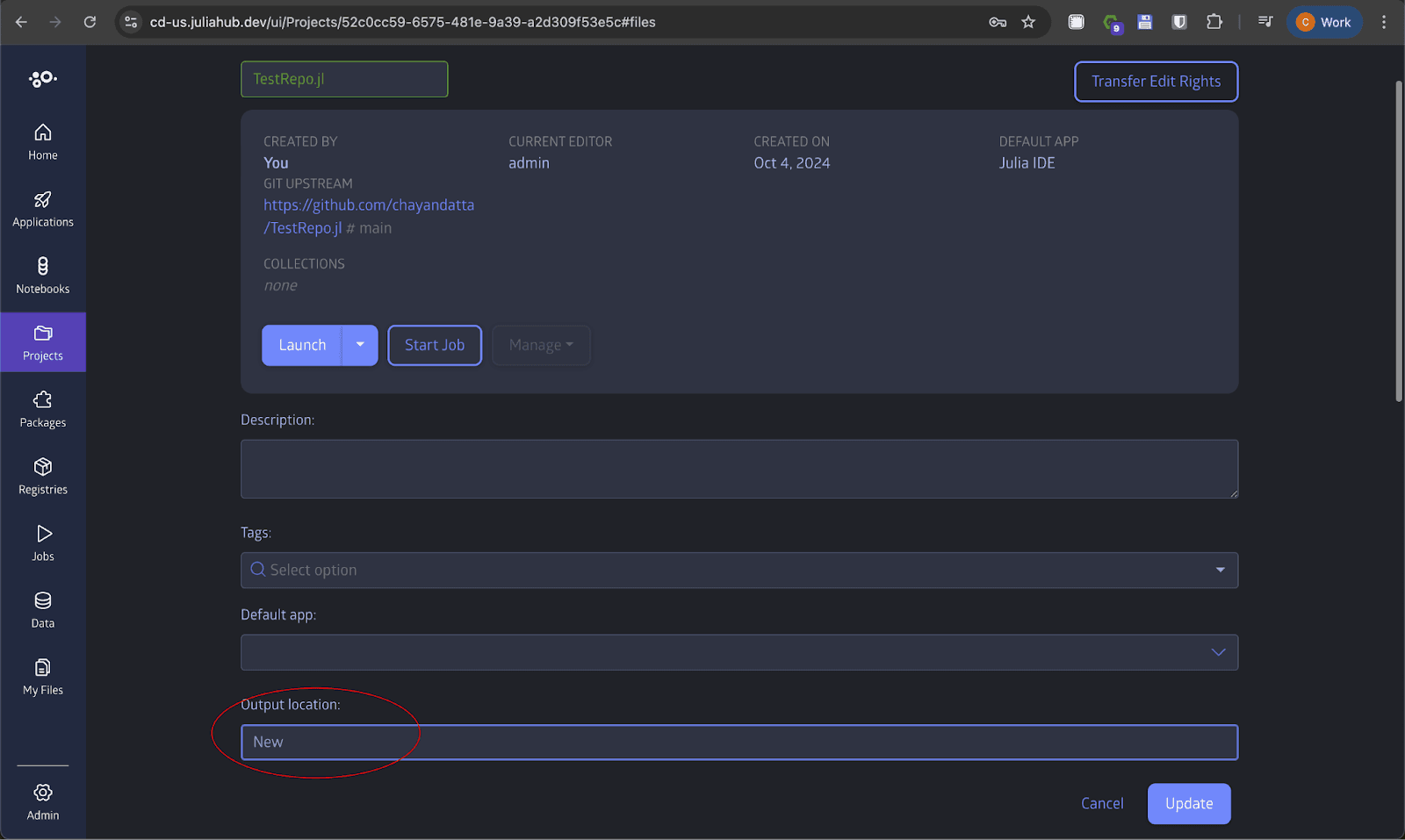
When your job finishes, you don't need to manually transfer files or dig through S3 buckets. You just go to the Jobs tab, pick the file you want, and pull it right back into your project’s Outputs folder. It keeps your experiments organized and ensures your results always live alongside the code that generated them.
Give It a Try
This feature isn't just about saving time (though it does that, too). It's about staying in the zone. It’s about letting you focus on the science of your simulation or the logic of your model, rather than the plumbing of the cloud.
So, next time you open a Project on JuliaHub, look for the Start Job button. Define a spec, hit submit, and feel the difference of a workflow that just flows.
Happy computing!